Guide
Connect ChatGPT, Claude, and Other AI Assistants
Add LeadUp as a custom connector in ChatGPT, Claude, or any MCP client, sign in, approve read-only access, and confirm the connection works.
Before you start
- A LeadUp account with an active subscription or trial
- An AI app plan that allows custom MCP connectors (check your AI app's plan)
Every MCP client connects to the same LeadUp server URL:
https://api.leadup-marketing.com/mcpAuthentication is OAuth: you never paste an API key. The AI app discovers LeadUp’s sign-in page from the URL, registers itself, and opens a LeadUp login window.
Connect ChatGPT
ChatGPT’s menus change over time. At the time of writing:
- In ChatGPT, open Settings → Apps & Connectors.
- Turn on Developer mode if your workspace requires it for custom connectors, then choose Create.
- Enter a name, such as
LeadUp, and paste the server URL above. - Choose OAuth as the authentication method and save.
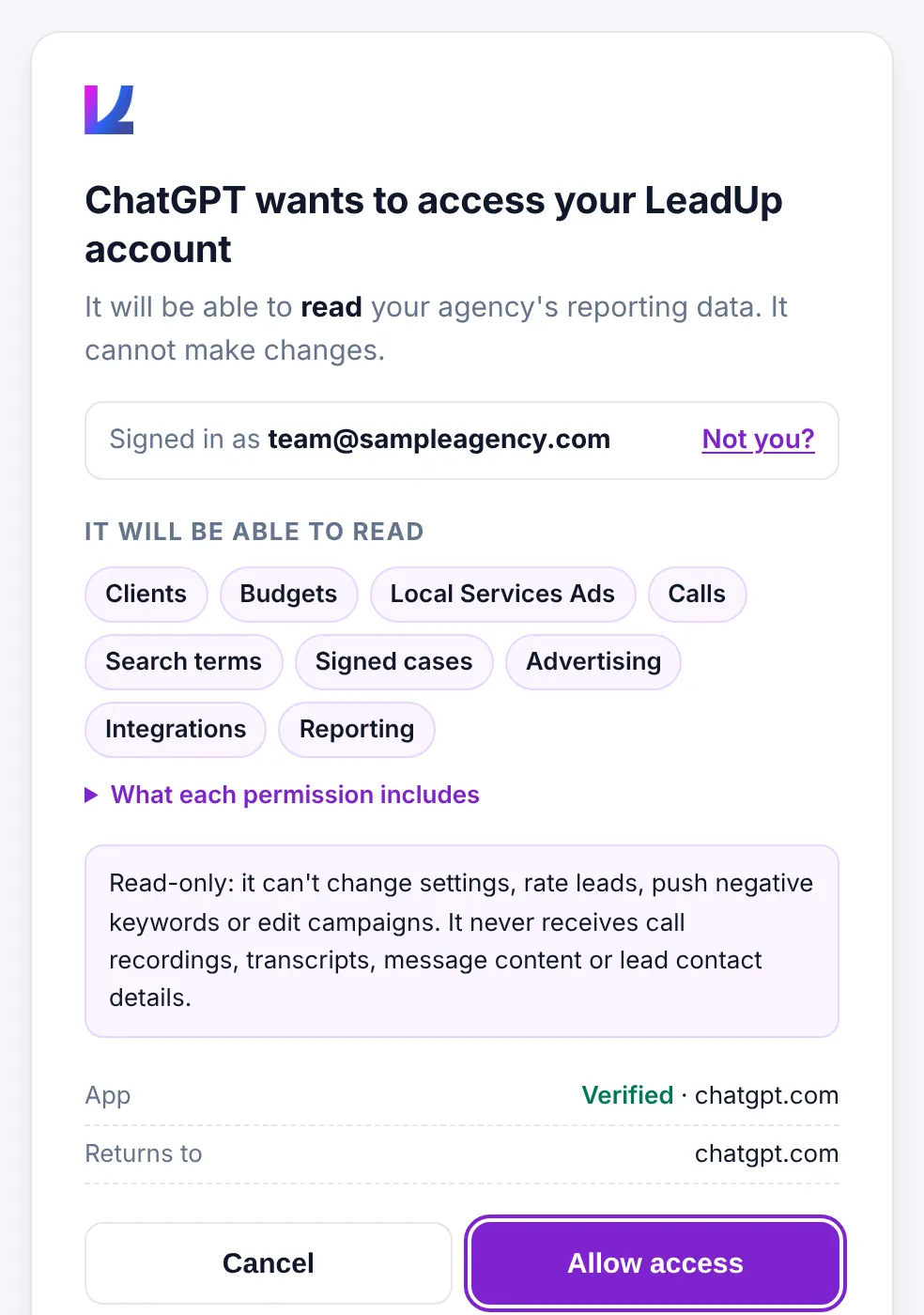
- A LeadUp window opens. Sign in, review the permissions, and select Allow access.
When ChatGPT identifies itself with its published client document, the consent screen shows Verified · chatgpt.com. Apps that register themselves without one show Not verified (self-registered).
Connect Claude
- In Claude, open Settings → Connectors and choose Add custom connector.
- Paste the server URL above and add the connector.
- Select Connect. A LeadUp window opens.
- Sign in, review the permissions, and select Allow access.
Connect another MCP client
Any client that implements the MCP authorization specification works, including desktop apps and the MCP Inspector:
- Transport: Streamable HTTP. Send
POSTrequests to the server URL. - Authorization: OAuth 2.1 authorization code flow with PKCE (
S256). The client discovers the authorization server from the server’s protected resource metadata, which a401response points to. - Registration: Client ID Metadata Documents, or Dynamic Client Registration as a fallback. No manual client setup is needed.
- Redirect URIs: must be
https, orhttp://localhost(any port) for desktop clients.
Browser-based clients can only call the server from approved web origins. If you are building a browser-based integration, contact us first.
Details, including scopes and token lifetimes, are in Authentication and permissions.
What you see when you sign in
- Sign in to connectEmail and password, or Continue with Google
- Consent screenThe app name, your email, and the permissions requested
- Allow accessYou return to the AI app, connected
- If you are not signed in to LeadUp, the window shows Sign in to connect. After you sign in, you go straight back to the connection request instead of the dashboard.
- The consent screen shows the app’s name, whether it is verified, the email you are signed in with, and each permission. Expand a permission to read what it allows.
- Not you? signs you out and lets you sign in with a different LeadUp account.
- Cancel tells the AI app you declined, and nothing is connected.
Check that it works
Ask the assistant something that needs one LeadUp tool:
Using LeadUp, list my clients and the LeadUp features each one has enabled.The assistant should call list_clients and show your client accounts. If it answers from general knowledge instead, mention LeadUp by name or enable the connector for the conversation in your AI app.
Reconnect or disconnect
- Reconnecting an app you already approved, with the same permissions, skips the consent screen.
- To disconnect, remove the LeadUp connector in your AI app. LeadUp does not have a settings page to list or disconnect AI apps yet. Without activity, a connection’s refresh token expires after 30 days.
Related
Related articles
- AI Agents · OverviewUse LeadUp with AI Assistants (MCP)What the LeadUp MCP server lets ChatGPT, Claude, and other AI assistants do with your agency data, what it never shares, and what you need first.
- AI Agents · ReferenceMCP Authentication, Permissions, and Data AccessHow LeadUp's MCP server authenticates AI apps with OAuth, which permissions it grants, how tokens work, and which data it never returns.
- Troubleshooting · TroubleshootingFix AI Assistant Connection ProblemsSolutions for MCP connection errors with ChatGPT, Claude, and other assistants, including sign-in loops, inactive subscriptions, missing data, and rate limits.
- AI Agents · GuideExample Prompts for AI Assistants Connected to LeadUpCopy-ready prompts for ChatGPT, Claude, and other assistants connected to LeadUp, grouped by agency job, with the tools each prompt uses.