Overview
How Monitoring Works
How LeadUp monitoring rules, account subscriptions, schedules, cooldowns, AI investigations, and alert delivery fit together across Google Ads accounts.
Before you start
- Google Ads connected in Settings → Connections
Monitoring checks your clients’ Google Ads accounts against rules you define, such as “a campaign spent over $2,000 in the last 7 days with no conversions”, and sends an alert when a rule matches. You write a rule once and attach it to as many client accounts as you like, so one guardrail covers every client.
Monitoring works with Google Ads only. Rules are thresholds and percentage changes that you set. There is no automatic anomaly detection: LeadUp alerts on exactly the conditions you write, nothing else.
The parts of monitoring
- RuleConditions on Google Ads metrics, a scope, a schedule, and a cooldown
- AccountsThe Google Ads accounts the rule is attached to
- CheckLeadUp evaluates each account on the rule's schedule
- AlertCreated when conditions match, one per rule and account
- InvestigationAn AI analyst looks for the cause before notifications go out
- DeliveryEmail and Slack, using your defaults or per-account destinations
Rules
A rule defines what to check and when to alert:
- Scope: what each check looks at. Account rolls up all activity per Google Ads account. Campaign (the default) checks every campaign. Ad group checks ad groups in Search and Display campaigns. Keyword checks keywords in Search campaigns.
- Conditions: one or more tests on Spend, Conversions, Conversion rate, CTR, Cost per lead, or Cost per click. Each condition is either a Metric value (for example, spend greater than $2,000) or a Percentage change against the previous period or the same dates last year. Combine conditions with All conditions must be true or Any condition can trigger.
- Minimum data requirements: optional minimum clicks, conversions, impressions, or spend before a condition is evaluated, so tiny campaigns don’t trigger alerts on noise.
- Check frequency and Lookback period: how often the rule runs and which period it evaluates.
- Alert cooldown (hours): how long to wait before alerting again on the same campaign, ad group, keyword, or account.
There are no fixed rule types. A “budget guardrail” or a “conversion drop” rule is simply a rule with those conditions. Create monitoring rules covers every field.
Accounts
Attaching a rule to a Google Ads account starts monitoring that account with that rule. The accounts come from your agency’s Google connection, including accounts under a manager account (MCC). Each attached account becomes a LeadUp client if it isn’t one already, so it appears in the Clients view with its Assigned rules.
One rule can cover many accounts, and one account can have many rules. Removing a rule from a client stops future checks for that pair but keeps the client and its alert history.
Schedule
- Daily, Weekly, or Monthly. Daily is the most frequent option; there is no hourly check.
- A new rule is first checked within about an hour of saving. After that, it runs again one day, week, or month after its previous run.
- The lookback period ends yesterday, in each Google Ads account’s time zone. Today’s partial data is never evaluated. Past 1 day means yesterday, and Month-to-date means the 1st through yesterday.
- Paused rules are skipped. Rules also stop running while your LeadUp account has no active subscription or trial.
Cooldown
The cooldown stops the same problem from alerting every day. After an alert, the campaigns (or other entities) in it won’t alert again for the same rule and account until the cooldown ends. Other campaigns in the same account can still alert. The default is 168 hours (7 days). Set it to 0 to allow an alert on every run.
Investigations
Before an alert is delivered, an AI analyst investigates it. It reads the Google Ads account (for example recent change history and search terms), lead data LeadUp already has for that client, such as calls and form submissions, and its previous investigation of the same rule on that account. It then gives a verdict:
| Verdict | Meaning |
|---|---|
| Action needed | A real, material problem someone should fix or decide on, such as broken tracking, a budget cut, or spend moving to poor search terms |
| Monitor | A real change whose cause is unclear, small, or likely temporary, such as conversion lag or a small sample |
| Explained | Something benign or intended, such as a planned budget increase |
The investigation only reads data. It never changes the ad account. If it can’t finish, the alert is still sent with the rule’s own numbers. See Alerts and investigations.
Delivery
Alerts go to email, Slack, or both:
- Monitoring defaults in Monitoring → Settings apply to every account: email recipients and Slack channels or direct messages.
- Any account can have its own destinations instead, set in the rule’s Delivery step.
- With no destinations configured, alerts go to the email address you sign in with.
Slack delivery needs a paid plan and a connected Slack workspace. See Slack.
Where to find things
The Monitoring page has three views:
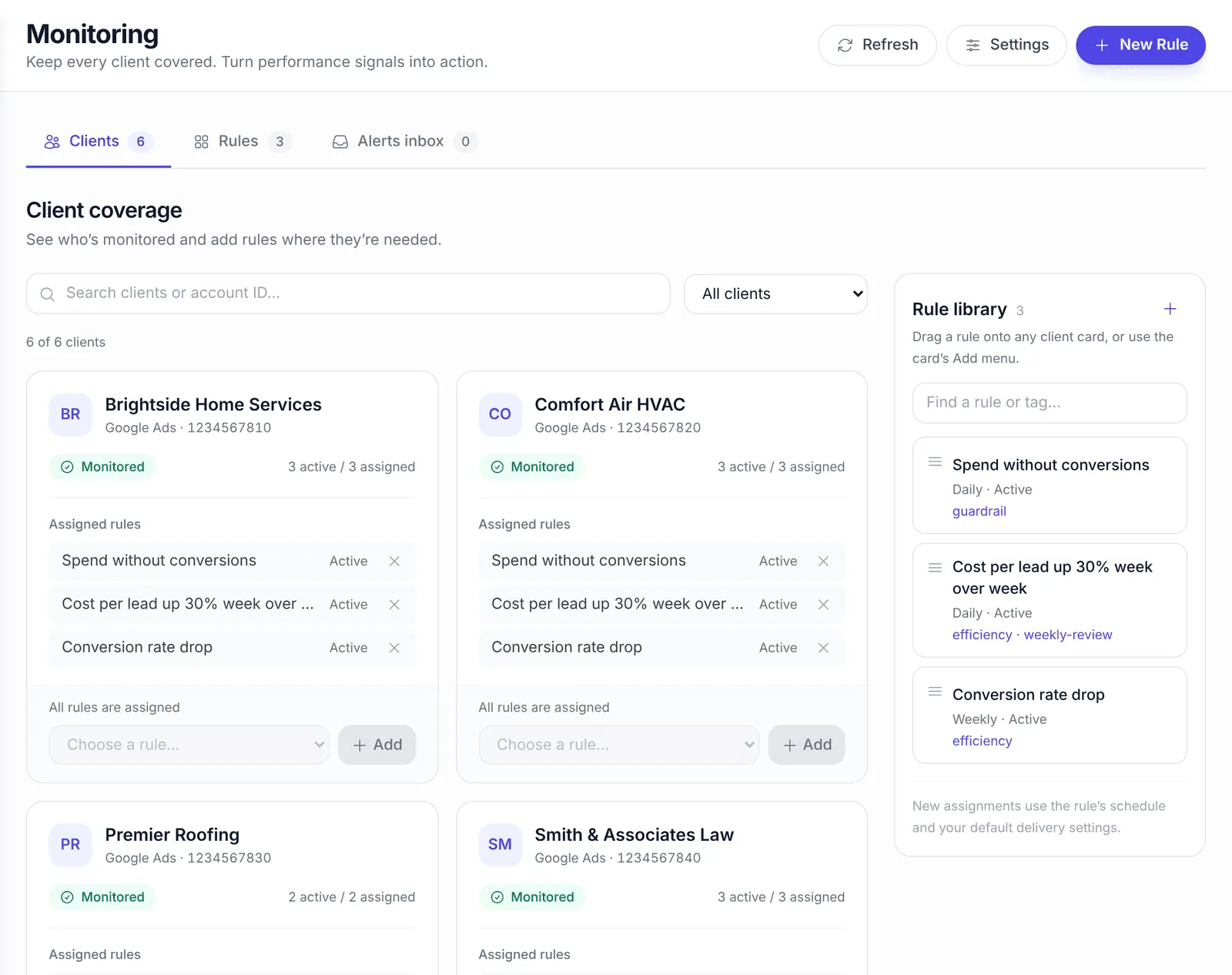
| View | Use it to |
|---|---|
| Clients | See which client accounts are Monitored and which Needs coverage, and add rules by dragging them from the Rule library onto a client card or with Choose a rule… |
| Rules | Manage the rule library: pause, enable, duplicate, edit, or delete rules, and filter by tag or status |
| Alerts inbox | Review Performance alerts and open each one’s details |
The header has Refresh, Settings (default recipients and the Slack connection), and New Rule.
Limits and things to know
- Google Ads only. Microsoft Ads, Meta Ads, and LSA lead quality are not monitored.
- Monitoring doesn’t read client budgets from Budget Management. For budget pacing, use Read budget pacing.
- AI rule drafts are limited to 15 per hour per account. The manual builder has no limit.
- Alerts are kept for 90 days, then deleted.
- If LeadUp loses access to an account, its checks fail until you reconnect Google. See Google Ads connection problems.
Related
Related articles
- Monitoring · GuideCreate Monitoring RulesBuild a Google Ads monitoring rule with the AI assistant or the manual builder, attach client accounts, choose where alerts go, and review it before activating.
- Monitoring · GuideReview Alerts and AI InvestigationsWork through the Monitoring alerts inbox, read an alert's details and AI investigation verdict, understand email and Slack delivery, and share alert links.
- Budgets · GuideRead Budget PacingHow LeadUp calculates pacing, daily targets, and projected spend, what each badge means, when spend data refreshes, and how to export client budgets to CSV.
- Integrations · IntegrationSlack IntegrationConnect Slack to LeadUp to send Google Ads monitoring alerts to channels or direct messages, and ask the LeadUp Slack assistant about account performance.