Guide
Read Budget Pacing
How LeadUp calculates pacing, daily targets, and projected spend, what each badge means, when spend data refreshes, and how to export client budgets to CSV.
Before you start
- At least one client in Budget Management with a client monthly budget
Pacing answers one question for every client: is spend where it should be for this point in the month? LeadUp compares month-to-date spend with the spend you would expect if the budget were spread evenly over the client’s active days, then tells you how much to spend per day for the rest of the month to land on budget.
How pacing is calculated
All figures use completed days only. Today is excluded until it ends in the ad account’s time zone, because Google Ads keeps updating today’s numbers.
| Figure | How it’s calculated |
|---|---|
| Spend MTD | Spend from the 1st of the month through yesterday, across the client’s platforms |
| Expected spend to date | Monthly budget ÷ active days in the month × active days so far (through yesterday) |
| Pacing | Spend MTD ÷ expected spend to date. 100% means exactly on target |
| Daily target | Remaining budget ÷ active days left in the month, including today |
| Yesterday | Spend on the last completed day |
Active days come from the client’s Ad schedule (Settings tab). With a weekday-only schedule, weekends don’t count toward expected spend, so a client isn’t marked behind on Monday morning. See Set up budget management.
Example: Brightside Home Services has a $9,000 monthly budget and advertises every day in a 30-day month. On the 11th, 10 days are complete, so expected spend is $3,000. Spend MTD is $2,400, so pacing is 80% and the badge reads Behind · 80.0%. The daily target is $6,600 ÷ 20 remaining days = $330.
Pacing badges
The Pacing column on Client budgets shows one of these:
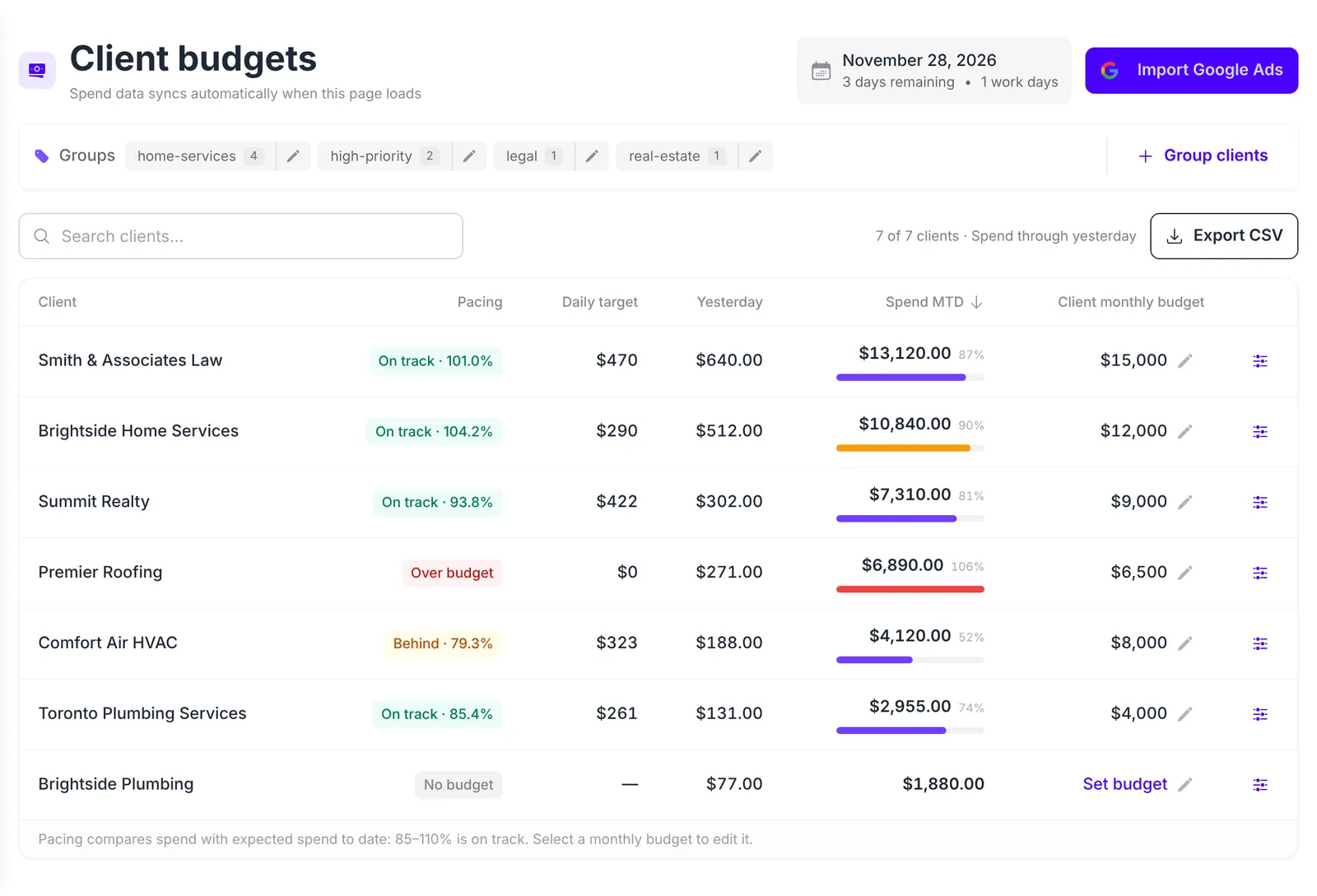
| Badge | Meaning |
|---|---|
| On track · x% | Pacing between 85% and 110% |
| Behind · x% | Pacing below 85% |
| Ahead · x% | Pacing above 110% |
| Over budget | Spend MTD already exceeds the client monthly budget |
| Not enough data | No completed active day yet this month (for example on the 1st), so pacing can’t be calculated |
| No budget | No client monthly budget is set. Spend is still shown |
The bar under each budget fills with the share of the budget spent. It turns amber above 90% and red above 100%.
When spend data refreshes
Spend refreshes when the Client budgets page loads, at most once per day per client. The first time you open the page on a given day (in each client’s account time zone), LeadUp fetches fresh spend from the ad platforms. Later loads that day use the saved figures. There is no background job, so a client nobody opens keeps yesterday’s figures until the page loads again.
- The header shows Last synced with a time, or “Spend data syncs automatically when this page loads”.
- If a platform can’t be read, the client keeps its last saved spend and shows a Cached data badge. Hover it to see the error. The header counts how many clients are showing cached data. LeadUp tries again the next time the page loads.
- The Pacing Insights tab of a client requests current figures from the ad platforms each time it loads. Use Refresh pacing data there to re-check one client.
Because figures run through yesterday, refreshing more than once a day rarely changes them.
Pacing Insights for one client
Open a client by its name to see its Pacing Insights tab.
- Under View performance, choose All platforms or one platform. With a platform selected, pacing uses that platform’s allocation instead of the client monthly budget.
- Read the Month-to-date pacing cards:
| Card | What it shows |
|---|---|
| Pacing vs. budget | Pacing percentage against the client budget or the platform allocation |
| Month-to-date spend | Spend through yesterday and the remaining budget |
| Daily average | Average spend per active day so far |
| Daily target | “Required average for the rest of the month”, and whether the daily average so far is over or under it |
| Projected month-end spend | Projected total for the month based on recent spend, with a confidence percentage |
The projection needs a few active days of data. Until then it shows “Need a few more active days before projecting.”
- Use Daily spend trends to chart spend for any date range. Filter by Campaign name (Contains or Exact match) or Campaign type to see whether one campaign is driving a change. Filtering hides the client target line, since it applies to the whole client.
Export client budgets
- On Client budgets, select Export CSV.
- Under Clients, keep Use current view (the clients in your current search and group filters), or use Select all or Clear and pick clients.
- Optionally, under Platform breakdowns, add columns for each platform. In platform columns, the monthly budget becomes the platform’s budget allocation. StackAdapt Programmatic and ChatGPT export separately, using saved campaign monthly targets as their budgets.
- Under Metrics, choose from Monthly budget, Spend MTD, Yesterday spend, Daily target, Pacing (%), Remaining budget, and Budget spent (%).
- Select Download CSV.
The file has one row per client, covering month to date with spend through yesterday. Client name, ID, currency, last sync time, and data status are always included. Percentages are numeric (100 = 100%) and missing values are blank. The file is built in your browser from the figures on the page.
Limits and things to know
- Pacing assumes even spend across active days. It doesn’t know about planned bursts, such as a promo in the last week. Use a note on the client’s Notes tab to record those decisions.
- Platforms in different currencies are not combined. Keep every platform for a client in one currency.
- Budget Management tracks Google Ads and StackAdapt. Microsoft Ads and LinkedIn are not supported, and Meta Ads connections are not generally available.
- To get alerted when spend moves sharply, use a monitoring rule on spend. Monitoring and pacing are separate: monitoring rules don’t read client budgets.
- AI assistants connected to LeadUp read the same stored spend. See example prompts.
Troubleshooting
| Symptom | Cause | Fix |
|---|---|---|
| Spend looks a day behind Google Ads | Today is excluded on purpose | Compare with Google Ads for the 1st through yesterday. |
| A client shows Cached data | A platform couldn’t be read, often a lost Google connection or account access | Hover the badge for the error. Reconnect in Settings → Connections, then reload the page. |
| Pacing looks wrong on weekends | The ad schedule doesn’t match how the client advertises | Update the Ad schedule on the client’s Settings tab. |
| Projected month-end spend is blank | Too few active days, or no active day in the schedule | Wait a few days, or check the Ad schedule. |
| Totals differ from the sum of platforms | A platform uses a different currency | Keep all platforms in one currency. |
Related
Related articles
- Budgets · GuideSet Up Budget ManagementImport Google Ads accounts into Budget Management, set each client's monthly budget and platform allocations, and choose the days that count for pacing.
- Budgets · GuideManage Campaign Budgets and TargetsSet monthly campaign targets for pacing, change Google Ads daily budgets from LeadUp, group campaigns, and handle shared and total-period budgets.
- Monitoring · OverviewHow Monitoring WorksHow LeadUp monitoring rules, account subscriptions, schedules, cooldowns, AI investigations, and alert delivery fit together across Google Ads accounts.
- Tutorials · TutorialRun a Weekly Health Check Across Every Client AccountSet up monitoring rules, Slack alerts, and AI investigations once, then run a 30-minute weekly routine of alerts, budget pacing, and search terms for every client.