Guide
Review Flagged Search Terms
Read Terms Auditing results, including flag categories, reasons, and suggested negatives, plus filters, campaign context, dismissing terms, and CSV export.
Before you start
- At least one client in Terms Auditing with a completed review
After each review, Terms Auditing marks every search term as relevant or flagged. A flagged term comes with a category, a one-line reason, and a suggested negative keyword. Your job is to confirm the flags you agree with, dismiss the ones you don’t, and push the rest as negatives.
Find terms that need review
- Open Terms Auditing. Each client row shows Suggested Negatives (flagged terms not yet pushed or dismissed) and Clean Terms % (the share of terms judged relevant).
- Row badges summarize status: Pending review (flags waiting for you), All pushed, or All clear.
- Expand a client to see its campaigns, labeled Search or PMax, each with its own Clean Terms figure. Use Filter campaigns… to narrow the list.
- Select View Details on a campaign.
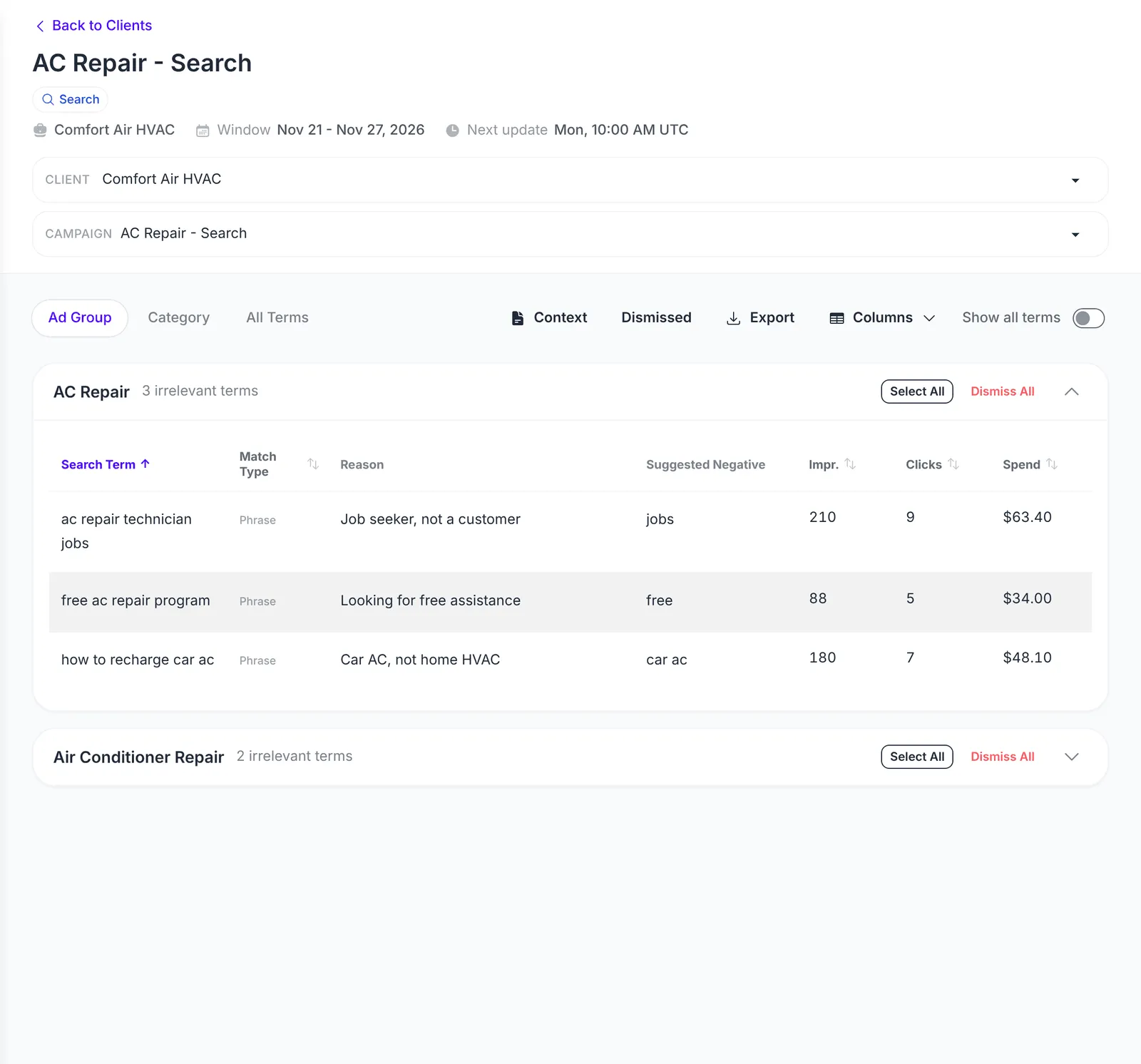
If a campaign is still being reviewed, its page shows Reviewing search terms and refreshes on its own.
What each flag means
Every flagged term gets one category:
| Category | When the AI uses it |
|---|---|
| Competitor | The query is clearly looking for another brand, company, or provider |
| Out Of Geo | The query targets a city, region, state, or country outside the campaign coverage |
| Irrelevant Offering | The query is about a different product, service, audience, or use case than the business serves |
| Jobs Or Training | The query is about careers, hiring, salary, school, certification, or training rather than buying |
| Support Or Existing Customer | The query is for support, login, tracking, billing, warranty, or another existing-customer need |
| Informational Research | The query is educational or exploratory with no clear commercial intent to buy the service |
| Low Intent Or Other | The query is too vague, mixed, low intent, or otherwise not a good fit for a safer category |
For each flagged term you also see:
- Reason: why the term was flagged, for example “Searcher is looking for HVAC technician jobs, not service.”
- Suggested Negative: the keyword to block, which may be shorter than the full search term so it blocks similar queries. It comes with a suggested match type, Phrase or Exact.
- Match Type and Keyword: how the search term matched and which of your keywords triggered it (Search campaigns).
Use Columns to add metrics: Impr., Clicks, Spend, Conv., Revenue, and Avg. CPC. Where a term has conversions, open the conversions value to see the breakdown by conversion action.
Filter and group terms
- Group terms by Ad Group (Search campaigns), Category, or All Terms.
- Turn on Show all terms to include relevant terms, for example to spot a relevant term the AI should have flagged.
- Search a term on Google from its row to see what the searcher would have found.
Check the campaign context
Select Context to see “the high-level context the AI uses to evaluate search terms”: Analysis Timeframe, Targeted Locations, Enabled Keywords, and for Performance Max, Asset Groups, Headlines, Long Headlines, Descriptions, and Keyword Themes.
If flags look wrong, start here. For example, if Targeted Locations shows “None provided”, the AI can’t judge Out Of Geo terms reliably. Fix the targeting or ad copy in Google Ads and the next run uses the new context. The context is read-only in LeadUp.
Dismiss terms the AI got wrong
Dismissing a term marks it as relevant. “Dismissed terms are treated as relevant and won’t be flagged in future audits.”
- One term: select Dismiss term on its row. Undo dismiss reverses it.
- Several terms: select them and choose Dismiss All.
- Terms you know in advance: select Dismissed, then use Dismiss terms manually to enter one term or paste one per line (up to 1,000 at a time). Useful for brand variations or services the client added recently.
To review dismissed terms across a client’s campaigns, expand the client on the Terms Auditing page and select Manage dismissed terms (Dismissed Terms Manager). Sort by Count or Campaign, select Manage on a campaign, then Restore to auditing, Restore selected, or Copy selected.
Term statuses
| Status | Meaning |
|---|---|
| Pending | Flagged and waiting for you to push or dismiss |
| Pushed | Sent to Google Ads as a negative keyword |
| Covered | Blocked by a negative you pushed for another term (“Covered by duplicate push”) |
| Dismissed | Marked relevant by you |
| Relevant | Judged relevant by the AI |
Export search terms
- On a campaign page, select Export (Export Search Terms).
- Choose the scope: Current view, All terms, Flagged only, or Relevant only.
- Choose a status: Any status, Pending, Pushed, Dismissed, or Relevant.
- Optionally filter by ad group (All ad groups) and category (All categories), choose any metrics to include, then download the CSV.
The file includes the client, campaign, campaign type, ad group, search term, generating keyword and its match type, category, reason, suggested negative, status, push level, and push time, plus the metrics you selected.
Troubleshooting
| Symptom | Cause | Fix |
|---|---|---|
| All Terms Are Relevant | Nothing was flagged in the current window | Turn on Show all terms to review the relevant ones. |
| Many Out Of Geo flags for in-area towns | Targeted locations are broad or missing | Check Context, then dismiss the towns the client serves. |
| A dismissed term was flagged again | It was dismissed in a different campaign | Dismissals apply per campaign. Dismiss it in each campaign, or add it with Dismiss terms manually. |
| “No terms match the current view” | Filters hide every term | Clear the ad group or category filter, or turn on Show all terms. |
Related
Related articles
- Search Terms · GuideSet Up Terms AuditingAdd Google Ads clients to Terms Auditing, choose how much search term history to import, and set the daily schedule, filters, and per-client overrides.
- Search Terms · GuidePush Negative Keywords to Google AdsSend approved negative keywords from Terms Auditing to Google Ads at the campaign, ad group, or negative list level, pick match types, and undo a push.
- Tutorials · TutorialClean Up Search Terms Across All Your ClientsA repeatable routine to review AI-flagged search terms for every client, push negative keywords in batches, and keep false positives from coming back.