Guide
Review Alerts and AI Investigations
Work through the Monitoring alerts inbox, read an alert's details and AI investigation verdict, understand email and Slack delivery, and share alert links.
Before you start
- At least one active monitoring rule attached to a Google Ads account
When a rule matches, LeadUp creates an alert, has an AI analyst investigate why it fired, and then sends it by email or Slack. The alert page keeps everything in one place: which campaigns matched, the numbers at trigger time, the investigation, and where the alert was delivered.
What happens when a rule fires
- Rule matchesOne alert per rule and account, listing every matching entity
- InvestigationUsually finishes within a few minutes
- NotificationEmail and Slack, with the verdict and headline when available
- Alerts inboxThe alert stays available for 90 days
Entities still in their cooldown from an earlier alert are left out. If every matching entity is in cooldown, no alert is created. See Cooldown.
Work through the alerts inbox
- Open Monitoring and select the Alerts inbox view (Performance alerts).
- Search by rule, account, or entity, or filter with All rules and All tags.
- Each row shows Alert & rule, Account, and Triggered. A verdict badge (Action needed, Monitor, or Explained) appears once the investigation finishes; Investigating… shows while it runs.
- Select Inspect to open the alert in a side panel, or Open full details for the full page.
A practical routine: start with Action needed, then Monitor, and skim Explained to confirm you agree with the reason.
Read an alert
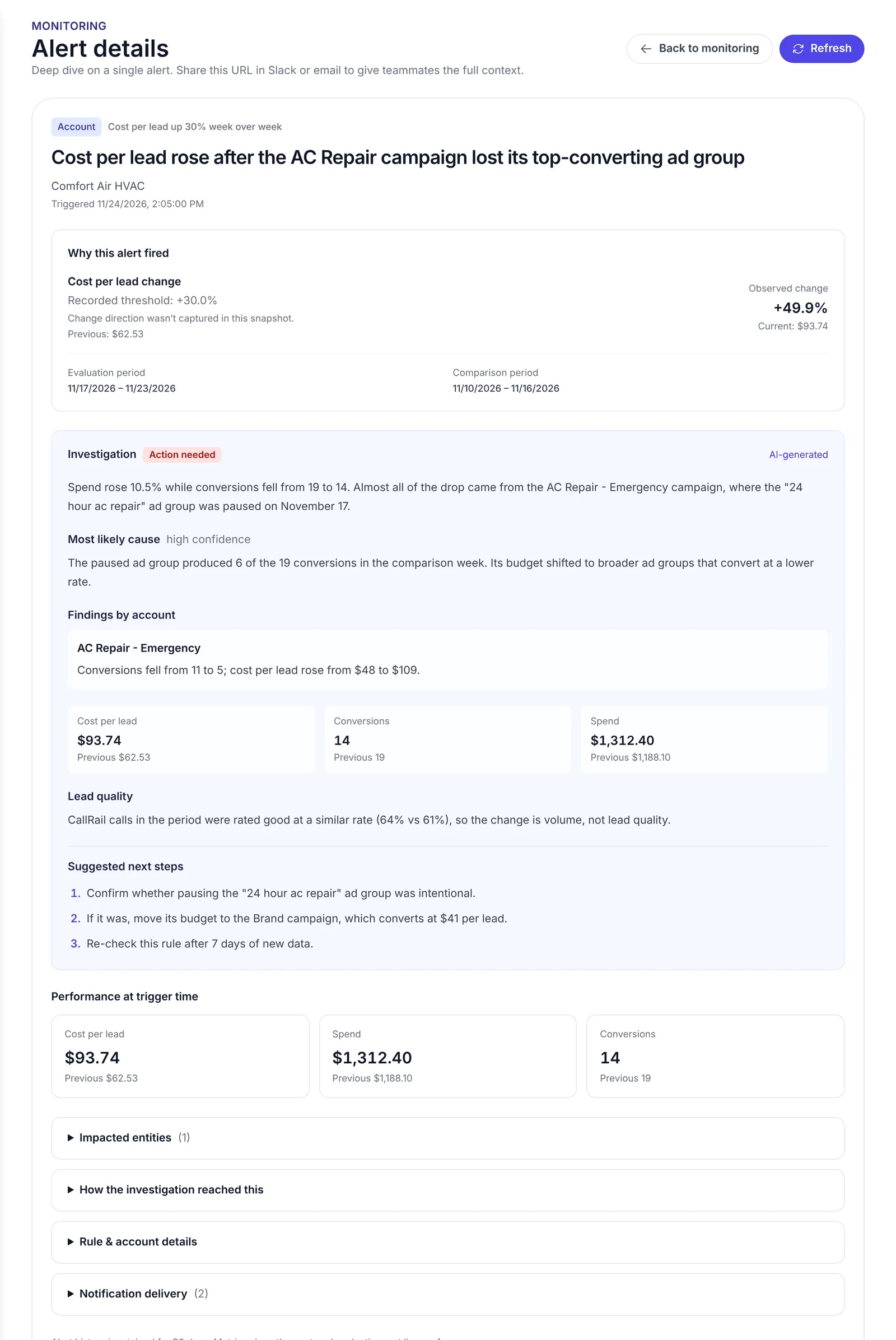
The alert page and panel show these sections:
| Section | What it tells you |
|---|---|
| Why this alert fired | The Evaluation period and, for percentage-change conditions, the Comparison period |
| Performance at trigger time | The metrics captured when the alert fired. Each observed value is from the highest-value matching entity |
| Impacted entities | Every campaign, ad group, keyword, or account that matched, with its own results |
| Matched conditions | Each condition, its recorded threshold, and the observed value |
| Rule & account details | The account and the rule’s current targeting filters. These reflect the rule as it is now; trigger values above were captured when the alert fired |
| Notification delivery | Each email or Slack delivery attempt and whether it succeeded |
Impacted entities are ordered by spend impact, so the biggest money movers come first.
Read the AI investigation
The Investigation section (marked AI-generated) explains the most likely cause. While it runs you see “Investigating this alert…”. Notifications wait for it, which usually takes a few minutes.
The analyst reads, and never changes:
- The Google Ads account, including recent change history and search terms.
- Lead data LeadUp already has for clients linked to that Google Ads account: CallRail and WhatConverts calls, form submissions, and lead outcomes.
- Its previous investigation of the same rule on the same account from the last 30 days.
| Verdict | What it means | What to do |
|---|---|---|
| Action needed | A real, material problem someone should fix or decide on, such as broken or duplicated tracking, a budget cut, a bid target change, or spend moving to poor search terms. An apparent improvement caused by broken tracking is also Action needed | Act today |
| Monitor | A real change whose cause is unclear, small, or likely temporary, such as conversion lag or a small sample | Check again in a few days |
| Explained | Something benign or intended, such as a planned budget increase, or a higher cost per lead while cost per qualified lead held | Confirm and move on |
Below the verdict you’ll find a summary and root cause, Lead quality, Suggested next steps, How it was investigated, Supporting evidence, and Data limitations. Read Data limitations before acting: it says what the analyst couldn’t check, for example when a client has no call or form data in LeadUp.
If the investigation can’t finish, the panel says “The investigation could not finish” and the alert is sent with the rule’s own numbers.
Where alerts are delivered
Each alert is delivered once, to the destinations for its account:
- The account’s own destinations, if you customized them in the rule’s Delivery step.
- Otherwise, your Monitoring defaults in Monitoring → Settings.
- With neither, the email address you sign in with.
Email subjects lead with the verdict and headline when the investigation finished, for example “Action needed: …”. Otherwise they read “Alert: {rule name} · {number} campaigns flagged in {account}”. Slack messages go to the channels and direct messages you selected. Both link to the alert page in LeadUp.
To change destinations, see Choose where alerts go. Slack setup is in Slack.
Share an alert
In the side panel, select Copy link, or Open in a new tab and copy the address. The link opens the alert’s full page.
Alert pages open only for someone signed in to your LeadUp account. LeadUp has one login per agency account, so a link pasted into a client’s Slack won’t open for them. To share the findings with someone outside LeadUp, copy the relevant numbers or the investigation summary instead.
Retention
Alerts are kept for 90 days, then deleted. Deleting a rule also clears its alerts. If you need a record beyond that, keep the alert email or Slack message.
Troubleshooting
| Symptom | Cause | Fix |
|---|---|---|
| No email arrived | Destinations are customized for that account, or the message was filtered | Check Notification delivery on the alert and the account’s delivery settings. |
| Slack alerts stopped | Slack was disconnected, or the plan changed | Reconnect Slack in Monitoring → Settings. Disconnecting stops Slack delivery for every account, including those with custom destinations. |
| Investigating… for a long time | The investigation is still running | Wait a few minutes and select Refresh. The alert is delivered either way. |
| “Alert not found or no longer available.” | The alert is older than 90 days, or its rule was deleted | Expired alerts can’t be restored. |
| A teammate’s link shows “This alert belongs to someone else” | They’re signed in to a different LeadUp account | Sign in with the agency account that owns the rule. |
Related
Related articles
- Monitoring · OverviewHow Monitoring WorksHow LeadUp monitoring rules, account subscriptions, schedules, cooldowns, AI investigations, and alert delivery fit together across Google Ads accounts.
- Monitoring · GuideCreate Monitoring RulesBuild a Google Ads monitoring rule with the AI assistant or the manual builder, attach client accounts, choose where alerts go, and review it before activating.
- Tutorials · TutorialRun a Weekly Health Check Across Every Client AccountSet up monitoring rules, Slack alerts, and AI investigations once, then run a 30-minute weekly routine of alerts, budget pacing, and search terms for every client.
- Integrations · IntegrationSlack IntegrationConnect Slack to LeadUp to send Google Ads monitoring alerts to channels or direct messages, and ask the LeadUp Slack assistant about account performance.