Guide
Set Up Client Onboarding Links
Configure one reusable link that asks clients for Google Ads, Google Analytics, and Google Tag Manager access, choose the roles you need, and share it.
Before you start
- Google Ads connected in Settings → Connections
- Your agency's Google Ads manager account (MCC), if you request Google Ads access
Client Onboarding replaces the back-and-forth of asking each client to add your agency to Google Ads, Google Analytics, and Google Tag Manager. You choose the access you need once, then send every client the same link. The client signs in with Google, picks their accounts, and LeadUp sets up the access for you. Your clients never share passwords and never get a LeadUp login.
How it works
- Configure your requestChoose products, roles, and your MCC, then save
- Share the linkThe same link works for every client
- Client reviews and signs inThey pick products, sign in with Google, and choose accounts
- Access is grantedGoogle Ads links to your MCC, Analytics and Tag Manager add your email
- You get a summary emailSuccesses and failures for each account
| Product | What the client grants | Who receives it |
|---|---|---|
| Google Ads | A link from their Google Ads account to your manager account, with the Admin role. LeadUp accepts the link on your behalf. | Your agency MCC |
| Google Analytics | Account-level access, including its Analytics properties, with the role you choose | Your LeadUp sign-in email |
| Google Tag Manager | Account access with the role you choose, plus a separate permission on the containers the client selects | Your LeadUp sign-in email |
Client Onboarding grants access in Google. It doesn’t add the client to any LeadUp module: once the account appears under your MCC, import it in Budget Management, LSA Leads, Terms Auditing, or Monitoring. See How clients work.
Set it up
Step 1: Configure your request
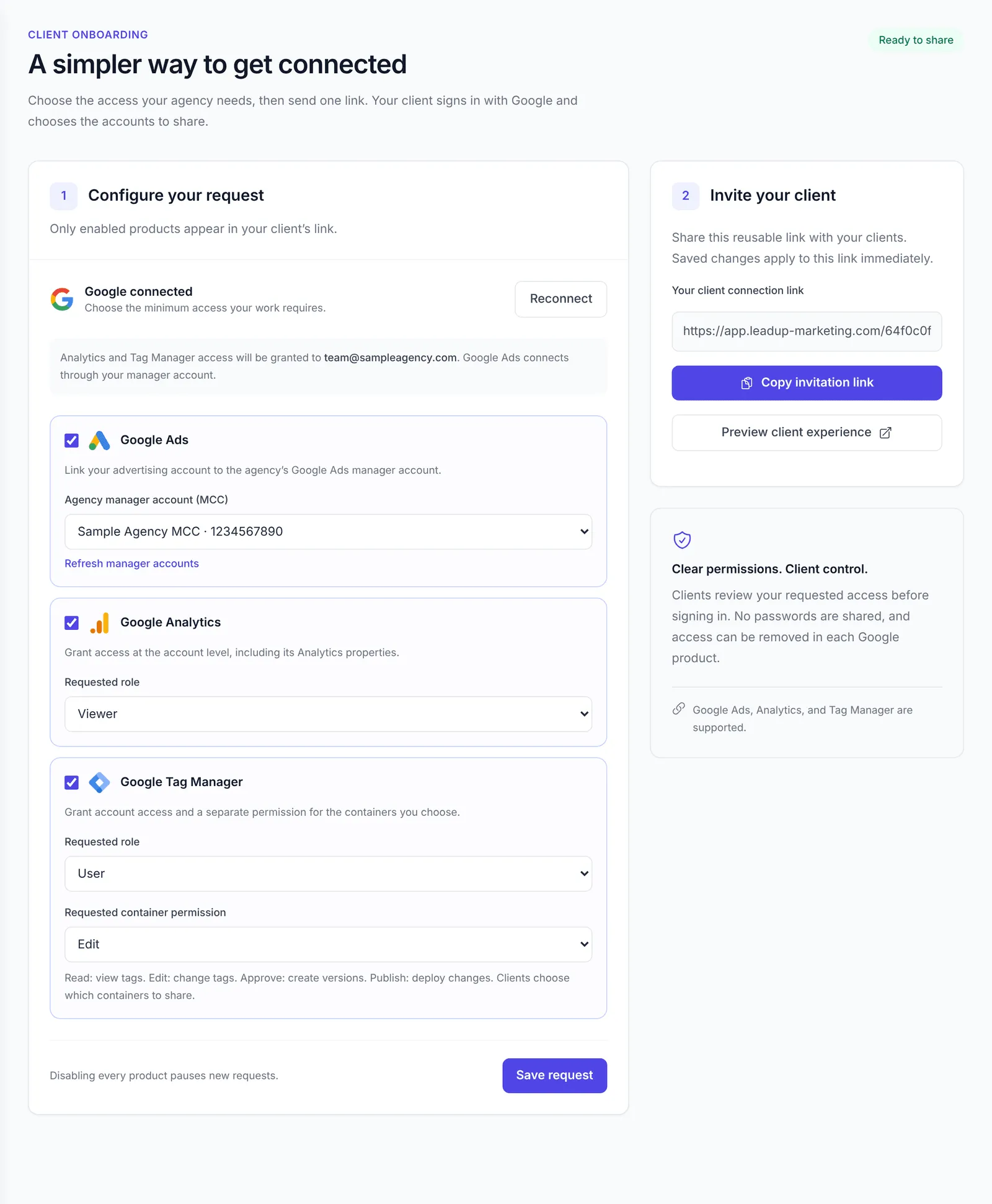
- Open Client Onboarding in the sidebar.
- If Google isn’t connected yet, select Sign in with Google and approve the permissions. Use the Google account that has access to your MCC.
- Under Configure your request, tick each product you want to request. Only enabled products appear in your client’s link.
- Set the access for each enabled product:
- Google Ads: choose your Agency manager account (MCC). If the list is empty, select Refresh manager accounts. The role is always Admin.
- Google Analytics: choose the Requested role: Viewer (default), Analyst, Editor, or Admin.
- Google Tag Manager: choose the Requested role (User, the default, or Admin) and the Requested container permission (Read, the default, Edit, Approve, or Publish).
- Select Save request. You see “Request saved. Your client link now uses these settings.”
The status badge at the top changes from Setup needed to Ready to share once Google is connected, at least one product is enabled, and an MCC is chosen if Google Ads is enabled.
Step 2: Invite your client
- Under Invite your client, select Copy invitation link. The link has this form: https://app.leadup-marketing.com/your-account-id/connect.
- Send it to your client with a short note on what you’re requesting and why.
- To see what your client will see, select Preview client experience.
The link is reusable. Saved changes apply to it immediately, including for clients who already have it.
Recommended settings
| Product | Recommended | Why |
|---|---|---|
| Google Analytics | Viewer, or Editor if you manage conversions and audiences | Ask for the least access your work needs. Clients are more likely to approve it. |
| Google Tag Manager role | User | “Account Admin also gives read access to all containers and the ability to change permissions. Choose User for access limited to selected containers.” |
| Google Tag Manager container permission | Edit if you build tags, Publish only if you also deploy them | Read: view tags. Edit: change tags. Approve: create versions. Publish: deploy changes. |
The concepts behind each access level are covered in our guides to requesting Google Ads access, Google Analytics access, and Google Tag Manager access. For a full checklist, see the client access checklist.
Limits and things to know
- Only Google Ads, Google Analytics, and Google Tag Manager are supported.
- Each client picks one account per product per pass. To connect a second Google Ads account, they open the link again.
- Existing Tag Manager permissions are preserved. LeadUp adds access; it doesn’t lower it.
- Disabling every product pauses new requests. Clients who open the link see that no products are enabled.
- Disconnecting Google in Settings → Connections clears your saved request. After you reconnect, configure and save it again. The link itself stays the same.
- Changing your request while a client has the invitation open asks them to reload it before continuing.
Troubleshooting
| Symptom | Cause | Fix |
|---|---|---|
| “No manager accounts loaded. Check that your Google sign-in has access to an MCC.” | The Google account you connected isn’t a user on a manager account | Select Reconnect and sign in with the Google account that manages your MCC |
| Save request is disabled | Google Ads is enabled but no MCC is selected | Choose an MCC, or untick Google Ads |
| “Choose a manager account available to your agency Google account.” | The saved MCC isn’t accessible with the current connection | Refresh the list and pick an MCC from it |
| Client sees “This agency hasn’t enabled any products yet.” | No product is saved, for example after a Google reconnect | Enable products and select Save request |
| Client sees “The agency needs to reconnect Google before you can continue.” | Your Google connection expired or was removed | Reconnect Google in Settings → Connections |
For what happens after the client opens the link, see Client invitation experience.
Related
Related articles
- Client Onboarding · GuideWhat Clients See When They Accept Your InvitationThe LeadUp invitation page your clients use to grant Google Ads, Analytics, and Tag Manager access, step by step, plus results, retries, and removing access.
- Integrations · IntegrationGoogle Ads IntegrationConnect your agency's Google account to LeadUp, choose accounts from your MCC, and see every feature that reads Google Ads and every change LeadUp can make.
- Tutorials · TutorialOnboard a New Client in LeadUpGo from signed contract to a fully covered client: get account access with one link, set the budget, add monitoring, start search term reviews, and set up LSA leads.
- Account · GuideUpdate Your Profile and Agency BrandingChange your logo, account name, and brand color in LeadUp, see where clients see them, and learn how to change your password and sign out.