Guide
Review LSA Leads, Credits, and Cost per Good Lead
Read LSA Leads metrics across clients, switch between charged and all leads, filter calls and messages, open lead details, and export lead data.
Before you start
- At least one client imported in LSA Leads
LSA Leads puts every Local Services Ads call and message lead for your clients in one place, with the AI rating, Google’s billing status and the spend behind each lead. Use the client list to spot accounts where cost per good lead is drifting, then open a client to see why.
The client list
Open LSA Leads in the sidebar. Pick a date range (Last 7 days, Last 30 days, Last 90 days or Year to date) and, optionally, a group. The list shows “Metrics include leads charged by Google, including credited leads.”
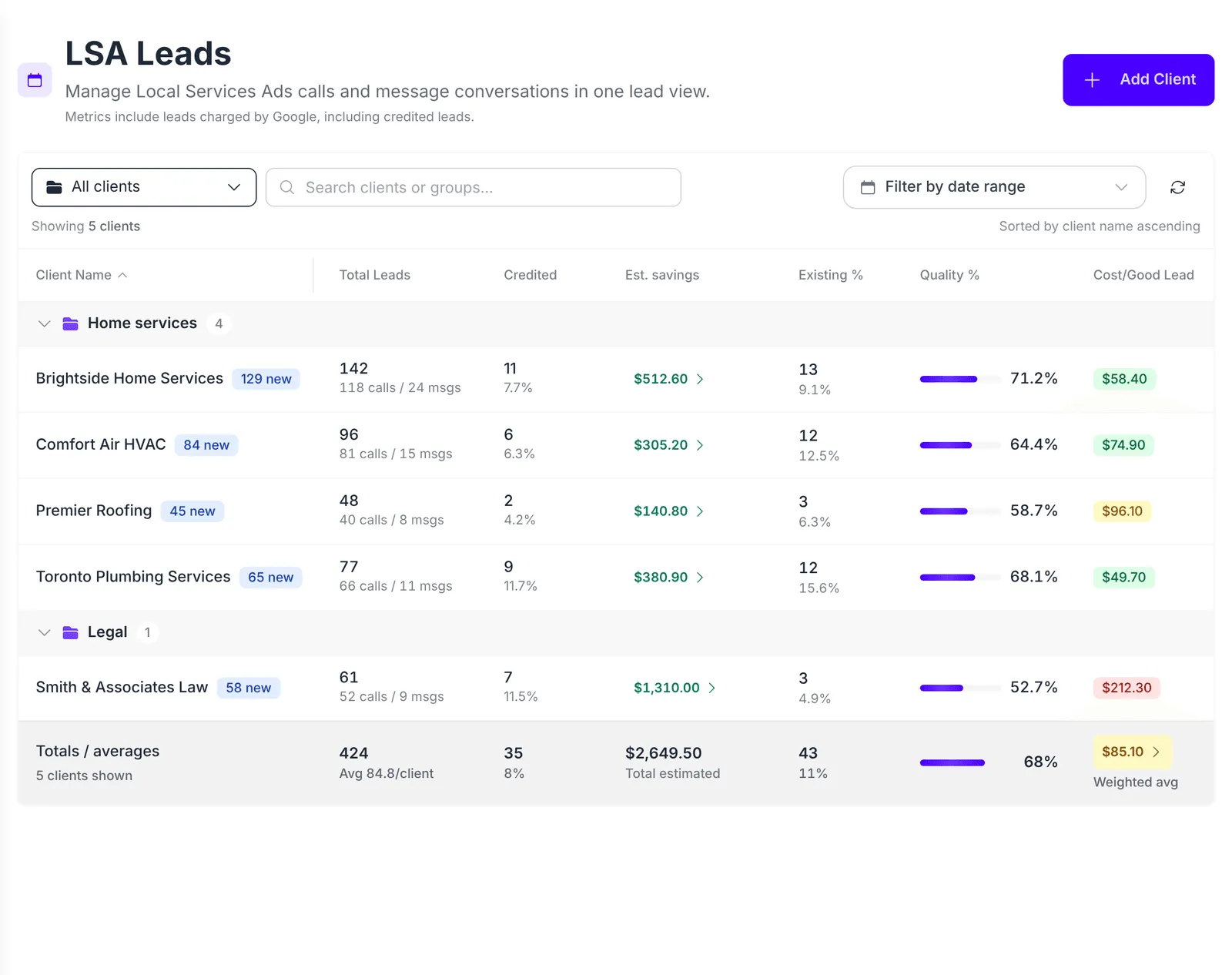
| Column | What it shows |
|---|---|
| Total Leads | Calls and message leads Google charged in the period, including credited ones |
| Credited | Leads Google credited back |
| Est. savings | Credited leads × average cost per lead. Select it for the breakdown of credits, average CPL, LSA spend and charged leads, split into phone calls and messages |
| Existing % | Share of non-credited leads that came from existing customers of the business |
| Quality % | Share of non-credited leads that are good leads |
| Cost/Good Lead | LSA spend ÷ good leads. Select it for the trend over time |
Cost/Good Lead is colored against the average of the clients in the list: green when more than 15% below the average, yellow within 15% either way, red when more than 15% above. The Totals / averages row sums the view.
A client can show two badges:
- Paused: lead processing is paused in the client’s settings.
- Google access issue: LeadUp could not read the account. See LSA leads not syncing.
Client analytics
Open a client with View. The Analytics tab has a scope toggle:
- Charged (default): “Metrics include leads charged by Google, including credited leads.”
- All leads: “Metrics include all imported leads, including leads Google did not charge. Spend and cost metrics are available in the Charged view.”
The tab shows:
- KPI cards: Total Leads (calls and messages), Lead Quality Rate, Call Time to Human, Message First Response and Cost per lead basis.
- Lead Metrics charts: lead volume, quality rate, qualified leads, cost per qualified lead (“Google-reported LSA spend ÷ qualified leads.”) and calls vs. messages. Turn on Hide unrated in charts to leave out leads that have no rating yet.
- Qualification Breakdown with the top reasons leads qualify or fall out.
- A map of LSA spend by location.
- Signed-lead metrics once you record outcomes: signed count, lead-to-signed rate, cost per acquisition, revenue, return on ad spend and median time to sign. See record lead outcomes.
In a group view the tabs are Analytics & accounts and All leads, and the Account breakdown compares calls and messages, existing-client share, quality, average call length and median time to human per account.
Find leads
The Leads tab lists calls and message conversations together. Search by name, phone, email, category or lead quality, or open the filters:
| Filter group | Options |
|---|---|
| Quick filters | Good leads, New clients, Calls only, 1m+ calls |
| Signed leads | All leads or Signed only, plus a revenue range |
| Lead | Lead outcome (good, bad, credited), Google billing (charged, not charged), client type (new, existing), lead rating |
| Activity | Type (calls or messages) and minimum call duration |
| Classification | Qualification label, objections, and service groups, each set to include or exclude |
Clear all resets the filters. The qualification labels and objection categories are explained in how call scoring works.
Open a lead
Select a lead to open its details. Use Previous and Next to move through the list, and Esc to close.
Calls show the lead status, whether the caller is an existing client, phone, time, duration, time to human, tracking number, qualification label and reason, the AI summary, the transcript and the recording. You can change the star rating and mark the call Good lead or Bad lead. Once Google has credited a lead, its quality can no longer be changed.
Message conversations show the full thread, the autoresponder status (Autoresponder on, Autoresponder paused or Autoresponder off), intake progress, and a reply box. Select Analyze conversation to have AI rate the conversation; “Your manual rating and lead quality are kept when the analysis updates.” Replying from LeadUp pauses the autoresponder for that conversation. See the autoresponder guide.
Every lead carries Google’s billing status:
| Status | Meaning |
|---|---|
| Credited | “Google credited this lead.” |
| Charged | Google charged the lead. |
| Not charged | “Google has not charged this lead. Its billing status may change.” |
| Unknown | Google has not reported a status. |
The feedback badge on a lead shows where its Google lead feedback stands. See LSA lead feedback.
Export lead data
- Open the client (or group) and select Export Lead Data.
- Turn on Calls CSV, Message conversations, or both.
- Set the Date range and the lead filters (lead quality, lead rating, Include credited leads). They apply to every selected file.
- Optional: add call filters (minimum and maximum duration, Google charge status) and conversation filters (automation status, intake status, Google lead status).
- Choose columns with Essential, All or Clear, then select Export lead data.
The files are emailed to your account email: “Export has been generated and sent to your email!” Conversation exports summarize each conversation and don’t include message text.
Ask questions about a client’s leads
The Assistant tab answers questions about the client’s leads in plain language, such as “Which services bring in the most good leads?” It is also where you import a CRM export to mark signed leads. See Call Assistant.
Limits and things to know
- Spend and cost figures come from Google Ads and appear only in the Charged view.
- Charge and credit status can change for weeks after a lead arrives. LeadUp rechecks it for 120 days.
- Calls without a Google recording can’t be transcribed or rated.
Related
Related articles
- Local Services Ads · GuideSet Up Google Local Services Ads LeadsImport Google Local Services Ads accounts into LSA Leads, choose how much call and message history to load, and manage sync, groups, pausing, and deletion.
- Local Services Ads · GuideSubmit Google LSA Lead Feedback Automatically or ManuallyHow LeadUp prepares Google Local Services lead feedback, when auto-feedback sends it after Google charges a lead, and how to review and submit feedback yourself.
- Call Analysis · ReferenceHow LeadUp Transcribes, Scores, and Labels CallsWhat LeadUp's AI does with each recorded call, what the 1–5 rating, good lead flag, 15 qualification labels and objections mean, and how to override them.
- Conversion Tracking · GuideRecord Signed LSA Leads and Import CRM OutcomesMark which Google Local Services Ads leads signed, record revenue per signed client, and bulk-import outcomes from a CRM export with the call assistant.