Guide
Create Monitoring Rules
Build a Google Ads monitoring rule with the AI assistant or the manual builder, attach client accounts, choose where alerts go, and review it before activating.
Before you start
- Google Ads connected in Settings → Connections
- For Slack delivery, a paid plan and Slack connected in Monitoring → Settings
On this page
- Start a rule
- Draft a rule with the AI assistant
- Example prompts
- Build or adjust the rule manually
- Rule details
- What to monitor
- When to alert
- When to check
- Additional settings
- Attach accounts
- Choose where alerts go
- Set your monitoring defaults
- Review and activate
- Example rules
- Edit, pause, or delete rules
- Troubleshooting
- Related
A monitoring rule is a set of conditions on Google Ads metrics that LeadUp checks on a schedule across the accounts you attach. This guide walks through the four steps of the rule editor, explains every field, and ends with example rules you can copy. For the concepts behind them, read How monitoring works.
Start a rule
- Open Monitoring in the sidebar and select New Rule.
- The Create monitoring rule window opens on step 1, Design logic. Choose AI assistant to start from a plain-language description, or Manual builder to fill in the fields yourself.
The editor has four steps: Design logic, Attach accounts, Delivery, and Review.
Draft a rule with the AI assistant
- Under Describe the alert you need, type what should trigger an alert in What should trigger an alert? Include what to monitor, a metric, a threshold, and a time period. You can also start from an example: High spend, Conversion drop, or Cost per lead.
- Select Generate draft.
- When Your draft is ready appears, select Use draft & review. This replaces the current builder fields with the draft.
- Check every field in the builder (below) before you continue. The draft is a starting point, not a saved rule.
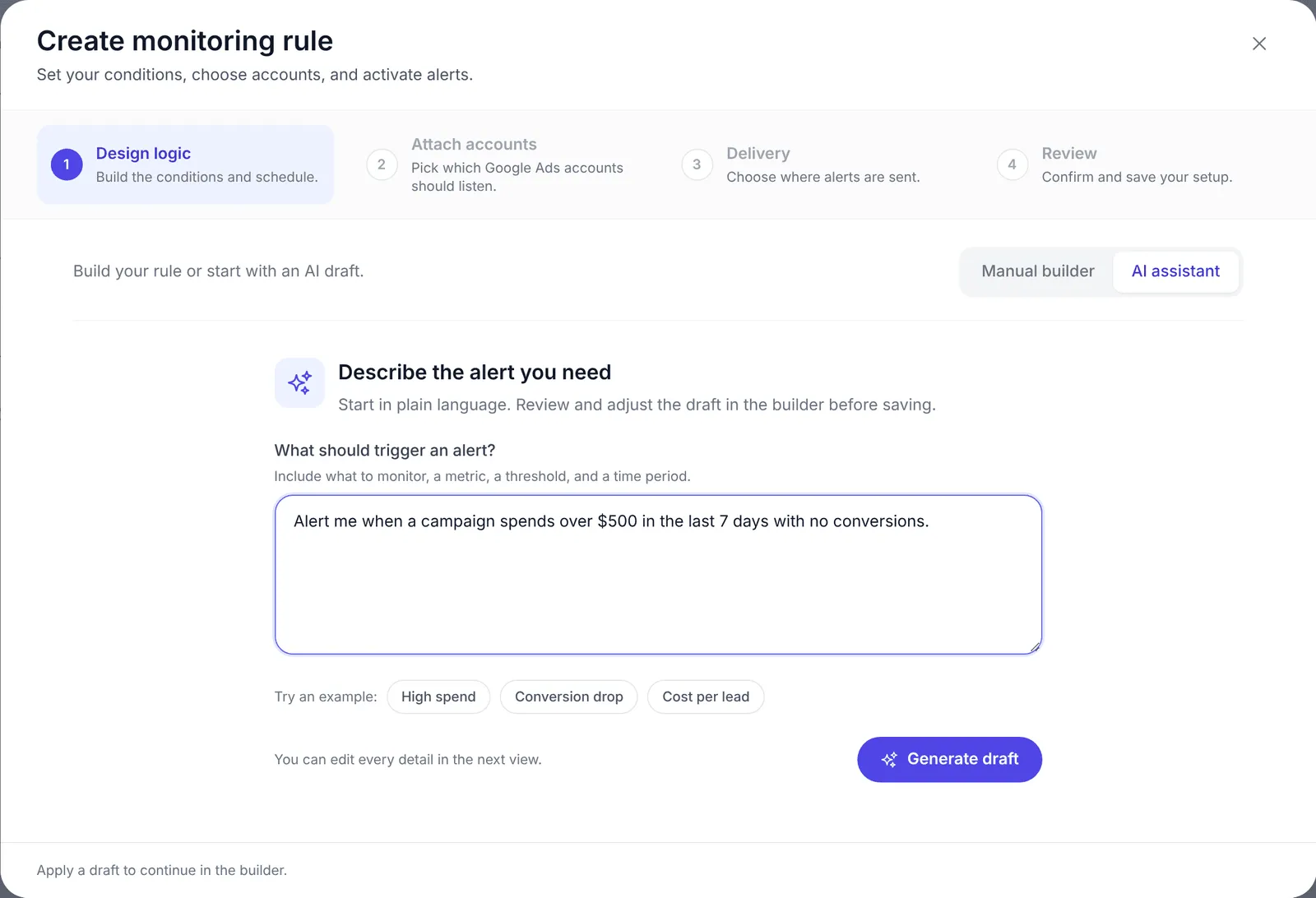
If the assistant can’t map your request to metrics, it answers: “We could not translate that request. Please describe the metrics, timeframes, and thresholds you care about, or switch to the manual builder.” AI drafts are limited to 15 per hour per account.
Example prompts
Alert me when any campaign spends more than $500 over the past 7 days with zero conversions.Alert me when account cost per lead increases by at least 30% over the past 14 days compared to the previous period, with at least 10 conversions.Alert me when a campaign's CTR is below 2% over the past 7 days, with at least 1,000 impressions.Alert me when campaigns with Brand in the name have a cost per click above $8 over the past 3 days.Build or adjust the rule manually
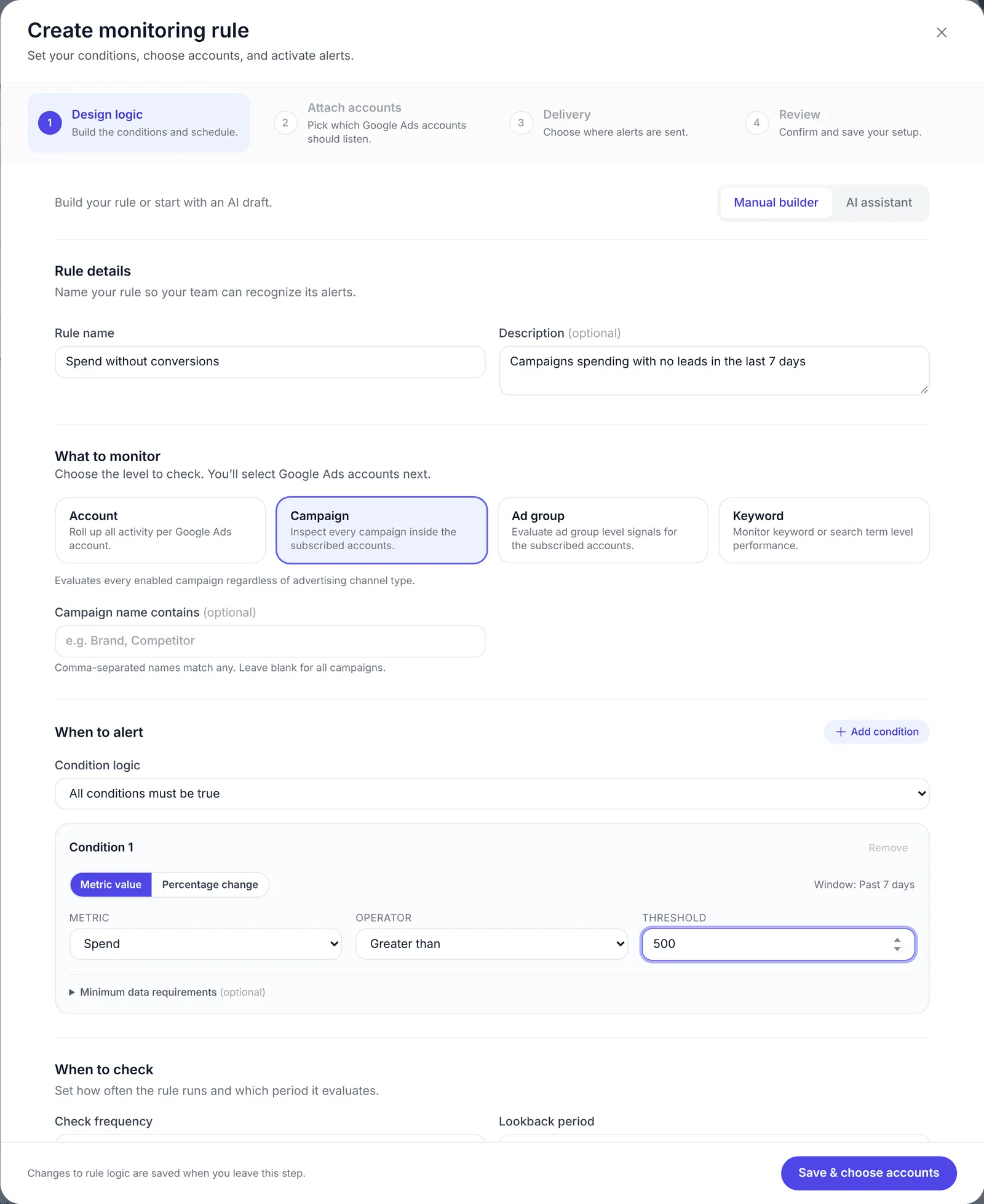
Rule details
| Field | What to enter |
|---|---|
| Rule name | Required. A name your team recognizes in alerts, such as Campaign spend guardrail |
| Description | Optional context, for example who owns the rule or what to do when it fires |
What to monitor
Choose the scope, the level each check looks at:
| Scope | What it checks |
|---|---|
| Account | All activity per Google Ads account, across every enabled campaign type |
| Campaign (default) | Every enabled campaign, regardless of channel type |
| Ad group | Ad groups in Search and Display campaigns; other campaign types are skipped |
| Keyword | Keywords in Search campaigns only |
For every scope except Account, you can narrow the rule with Campaign name contains (optional). Separate several names with commas to match any of them, or leave it blank for all campaigns. Keyword rules also have Keyword text contains. Paused campaigns are not checked.
When to alert
Select Add condition for each test. For each condition, choose:
- Metric value or Percentage change.
- The metric: Spend, Conversions, Conversion rate, CTR, Cost per lead, or Cost per click. Cost per lead is spend divided by conversions.
- For Metric value: an operator (Greater than, Greater than or equal, Less than, Less than or equal, Equal to, Not equal to, or Between) and a threshold. Between adds a Max threshold.
- For Percentage change: Compare against (Previous period or Same dates last year), the direction (Increase or decrease, Increase only, or Decrease only), and Change threshold (%). The threshold defaults to 20%.
- Optionally, Minimum data requirements: Min clicks, Min conversions, Min impressions, and Min spend. The condition is only evaluated once these are met.
With more than one condition, set Condition logic to All conditions must be true or Any condition can trigger.
When to check
| Field | Options | Default |
|---|---|---|
| Check frequency | Daily, Weekly, Monthly | Daily |
| Lookback period | Past 1 day, Past 3 days, Past 7 days, Past 14 days, Past 30 days, Month-to-date | Past 7 days |
The lookback period applies to every condition in the rule and ends yesterday in the account’s time zone. For Percentage change, Previous period is the same number of days immediately before the lookback period.
Additional settings
| Field | Notes |
|---|---|
| Tags | Separate with commas. Up to 20 tags, 40 characters each. Tags organize rules and alerts; they don’t select campaigns |
| Alert cooldown (hours) | Delays duplicate alerts for the same campaign, ad group, keyword, or account. Default 168 hours (7 days). Set 0 to alert on every run |
Select Save & choose accounts. The rule is saved at this point and you move to step 2.
Attach accounts
- Under Choose accounts, select the Google Ads accounts this rule should monitor. Open a manager account to see the accounts inside it.
- Select Continue to delivery.
You can also attach rules later from the Clients view: drag a rule from the Rule library onto a client card, or use Choose a rule… and Add on the card. New assignments use the rule’s schedule and your default delivery settings.
Choose where alerts go
Under Where should alerts go?:
- Leave accounts on Monitoring defaults to use the email recipients and Slack destinations in Monitoring → Settings.
- To send one account’s alerts elsewhere, for example to that client’s Slack channel, select Customize on the account, then add Email recipients or Slack destinations. Changes apply only to this account. Select Use defaults to go back.
With no destinations configured anywhere, alerts go to your sign-in email.
Set your monitoring defaults
- On Monitoring, select Settings.
- Under Email recipients, select Add a recipient and enter an address.
- Under Slack destinations, select Connect Slack if needed, then search with Find a channel or teammate and select channels or people. For private channels, add @Leadup in Slack, then select Refresh list.
- Select Save defaults.
Review and activate
Step 4 summarizes Scope, Check frequency, Alert cooldown, the condition logic, and Accounts & delivery. Use Edit logic, Edit accounts, or Edit delivery to go back. Select Activate monitoring to finish. The rule is first checked within about an hour.
Example rules
| Goal | Scope | Condition | Lookback | Minimums | Cooldown |
|---|---|---|---|---|---|
| Spend with no results | Campaign | Spend greater than 500 and Conversions equal to 0 | Past 7 days | none | 168 h |
| Lead cost creeping up | Account | Cost per lead, Percentage change, Increase only, 30% vs Previous period | Past 14 days | Min conversions 10 | 168 h |
| Conversions collapse | Account | Conversions, Percentage change, Decrease only, 40% vs Previous period | Past 7 days | Min conversions 5 | 72 h |
| Weak ad engagement | Campaign | CTR less than 2 | Past 7 days | Min impressions 1,000 | 168 h |
| Expensive clicks on brand | Campaign, Campaign name contains Brand |
Cost per click greater than 8 | Past 3 days | Min clicks 20 | 72 h |
Edit, pause, or delete rules
Open the Rules view. Each rule shows its status, schedule, and subscriptions, with actions to pause or enable it, duplicate it, edit it, or delete it.
Troubleshooting
| Symptom | Cause | Fix |
|---|---|---|
| Save & choose accounts is disabled | The rule has no name | Enter a Rule name. |
| “At least one condition is required.” | All conditions were removed | Select Add condition. |
| “You’ve reached the limit for AI rule drafts.” | 15 drafts in the last hour | Wait the number of minutes shown, or use the Manual builder. |
| A rule never alerts | Thresholds too strict, minimums not met, all matching campaigns paused, or cooldown still running | Check the conditions and minimums against the account’s numbers for the lookback period. |
| Too many alerts | No minimums, or cooldown set to 0 | Add minimum data requirements and a cooldown. |
| Slack destinations aren’t listed | Slack not connected, or the channel is private | Connect Slack in Settings. For private channels, add @Leadup in Slack and refresh the list. |
Related
Related articles
- Monitoring · OverviewHow Monitoring WorksHow LeadUp monitoring rules, account subscriptions, schedules, cooldowns, AI investigations, and alert delivery fit together across Google Ads accounts.
- Monitoring · GuideReview Alerts and AI InvestigationsWork through the Monitoring alerts inbox, read an alert's details and AI investigation verdict, understand email and Slack delivery, and share alert links.
- Tutorials · TutorialRun a Weekly Health Check Across Every Client AccountSet up monitoring rules, Slack alerts, and AI investigations once, then run a 30-minute weekly routine of alerts, budget pacing, and search terms for every client.
- Tutorials · TutorialOnboard a New Client in LeadUpGo from signed contract to a fully covered client: get account access with one link, set the budget, add monitoring, start search term reviews, and set up LSA leads.