Guide
Push Negative Keywords to Google Ads
Send approved negative keywords from Terms Auditing to Google Ads at the campaign, ad group, or negative list level, pick match types, and undo a push.
Before you start
- Google Ads connected, with a Google user that can edit the client account
- Flagged terms reviewed in Terms Auditing
Once you’ve reviewed the flags, push the negatives you agree with straight to Google Ads. You choose where each negative goes and its match type, and you can undo a push from the same page.
Push negatives
- Open the campaign from Terms Auditing (View Details).
- Select the terms to block in the Select column, or use Select All. Terms that are already pushed or marked relevant can’t be selected.
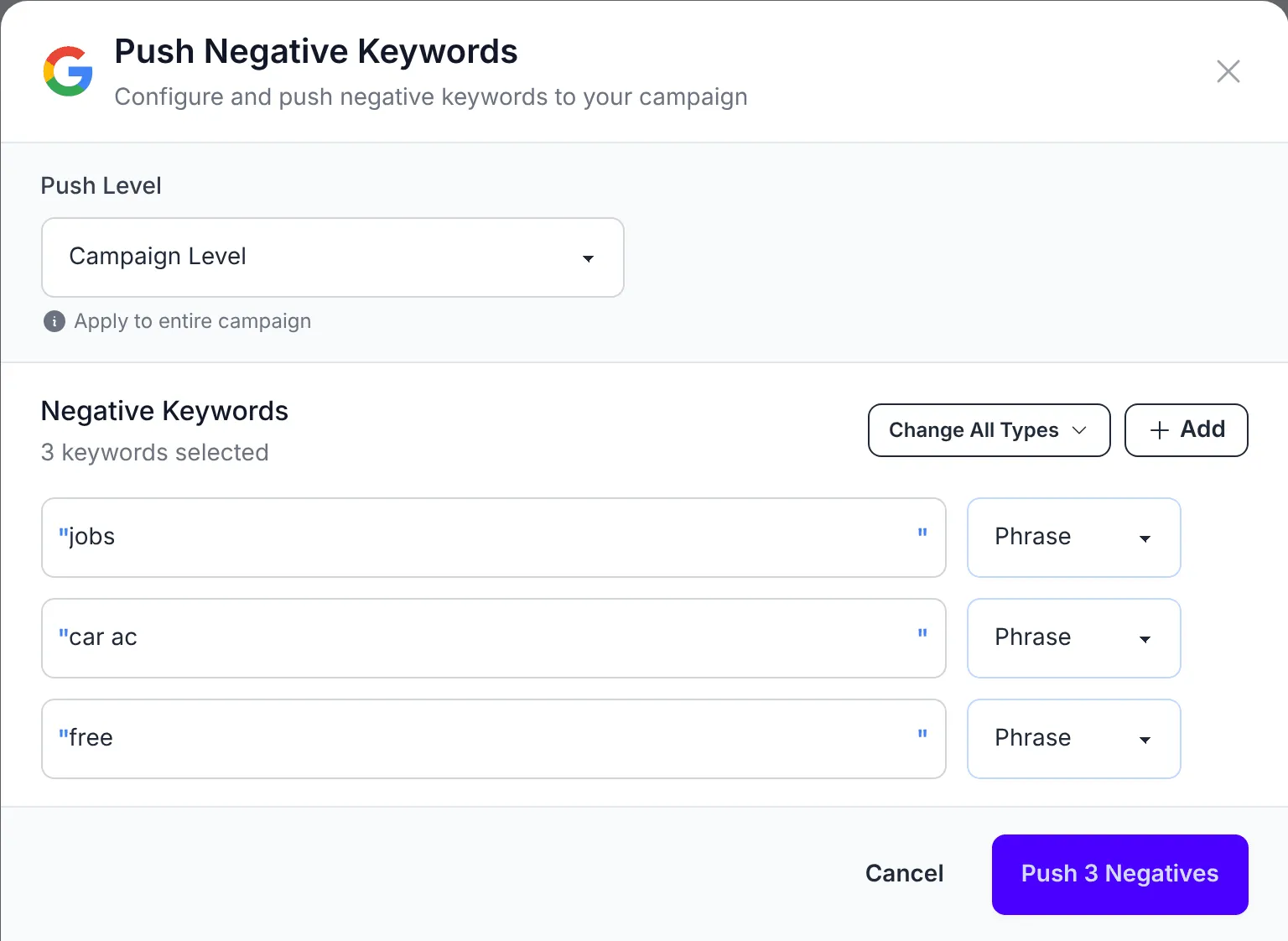
- In the selection bar, select Push to Google Ads. The Push Negative Keywords window opens with one row per term, prefilled with the suggested negative and its suggested match type.
- Choose the Push Level (see below). For Negative List, pick a list under Select a list.
- Review each keyword:
- Edit the text if you want a shorter or broader negative.
- Change the match type to Broad, Phrase, or Exact, or use Change All Types → Set All to Broad, Set All to Phrase, or Set All to Exact.
- Remove rows you don’t want with Remove keyword, or add your own with Add (campaign and list levels).
- Select Push N Negatives. LeadUp confirms with “Negatives pushed successfully” and marks the terms Pushed.
If another term in the batch is blocked by the same negative, it shows Covered (“Covered by duplicate push”) instead of creating a duplicate.
Push levels
| Push Level | What it does | Available for |
|---|---|---|
| Campaign Level (default) | “Apply to entire campaign”: adds the negative to this campaign | Search and Performance Max |
| Ad Group Level | “Apply to specific ad groups”: adds each negative to the ad group whose search term it came from | Search only |
| Negative List | “Add to a negative keyword list”: adds the negatives to a shared negative keyword list in the account | Search and Performance Max |
The list picker shows every negative keyword list in the Google Ads account. A list only blocks traffic in campaigns it’s applied to, so check in Google Ads that the list you pick is applied to this campaign.
Match types
| Match type | How it’s written | What it blocks |
|---|---|---|
| Broad | water heater repair |
Searches that contain all the words, in any order |
| Phrase | "water heater repair" |
Searches that contain the words in this order |
| Exact | [water heater repair] |
Only this exact search |
LeadUp adds the quotes or brackets when you change the match type. Negative keywords don’t match close variants, so add plurals or misspellings separately if you need them. For more on choosing match types, see Negative keyword match types.
Limits
- Each keyword can be at most 80 characters and at most 10 words. LeadUp checks this before pushing: “Keywords must not exceed 80 characters” and “Keywords must not exceed 10 words”.
- Only Broad, Phrase, and Exact match types are allowed.
- Ad Group Level needs every keyword to belong to an ad group, so it isn’t offered for Performance Max.
- For Performance Max, also see Performance Max negative keywords.
Undo a push
- On the campaign page, find the pushed term. Turn on Show all terms if it’s hidden.
- Select Undo push on its row.
LeadUp removes that negative from Google Ads and confirms with “Negative keyword undone successfully”. The term returns to pending, so you can push it again with a different level or match type, or dismiss it.
Recommended workflow
- Sort or group by Category and handle one category at a time. Jobs Or Training and Competitor flags are usually quick approvals; Low Intent Or Other needs more judgment.
- Check Spend and Conv. for each term before pushing.
- Push shared themes to a negative list and one-off terms at campaign level.
- Dismiss what you disagree with, so the next run doesn’t flag it again.
For a routine across many clients, see Clean up search terms across clients.
Troubleshooting
| Symptom | Cause | Fix |
|---|---|---|
| “Google Ads not connected for this client” | LeadUp has no working Google connection for the account | Reconnect Google in Settings → Connections. See Google Ads connection problems. |
| Push N Negatives is disabled | A keyword breaks a limit, no list is selected, or no keywords remain | Fix the errors listed under “Please fix the following errors:”, or pick a list. |
| “Failed to push negatives.” | Google Ads rejected the change, often because the Google user can’t edit the account | Check the user’s access level in Google Ads, then try again. |
| Traffic still matches after pushing to a list | The list isn’t applied to the campaign | Apply the list to the campaign in Google Ads, or push at campaign level. |
| Ad Group Level is missing | Performance Max campaign | Use Campaign Level or Negative List. |
Related
Related articles
- Search Terms · GuideReview Flagged Search TermsRead Terms Auditing results, including flag categories, reasons, and suggested negatives, plus filters, campaign context, dismissing terms, and CSV export.
- Search Terms · GuideSet Up Terms AuditingAdd Google Ads clients to Terms Auditing, choose how much search term history to import, and set the daily schedule, filters, and per-client overrides.
- Tutorials · TutorialClean Up Search Terms Across All Your ClientsA repeatable routine to review AI-flagged search terms for every client, push negative keywords in batches, and keep false positives from coming back.